![Logos.webp]](https://help.shopbox.com/hs-fs/hubfs/Logos.webp?height=22&name=Logos.webp)
|
Before you start Make sure you have access to Shopbox Back Office with permission to manage integrations. You need an active Weorder account and your Weorder username and password. Your products and categories should already be created in Shopbox. Decide which products should be available in Weorder before creating the menu filter. |
Overview
- Create or review the Shopbox filter/menu you want to use in Weorder.
- Open the Weorder integration in Shopbox.
- Connect Shopbox to your Weorder account.
- Select the correct Shopbox store, register, and filter/menu.
- Synchronise the filter and activate the menu in Weorder.
1. Create a Shopbox filter for Weorder
We recommend using a dedicated Shopbox filter/menu for Weorder. This lets you choose exactly which categories and products should be sold online, instead of sending your full in-store product catalogue.
- In Shopbox Back Office, go to Product Catalog.
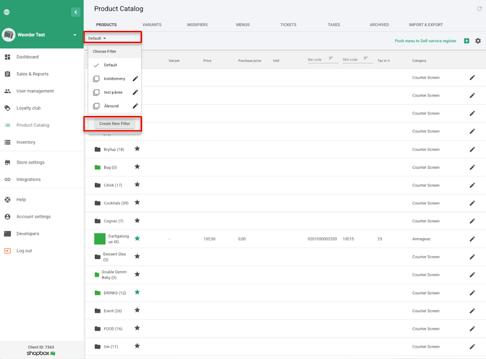
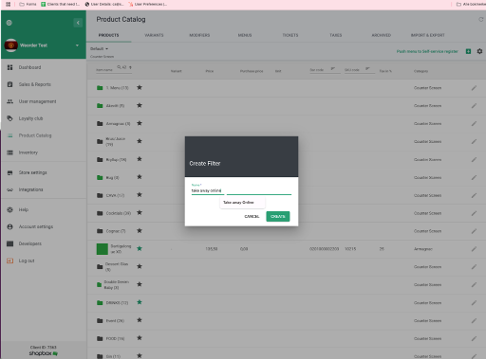
- Open the filter/menu area and create a new filter.
- Give the filter a clear name, for example Takeaway menu or Weorder menu.
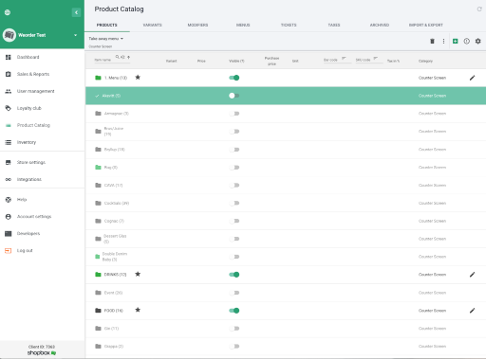
- Make the categories and products that should be available in Weorder “Visible” in the filter.
2. Open the Weorder integration in Shopbox
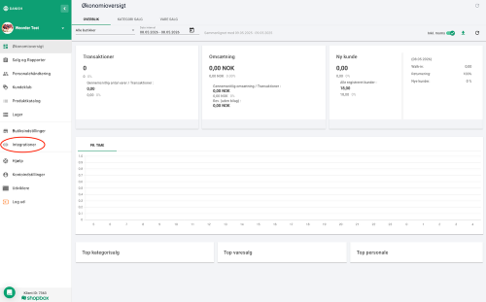
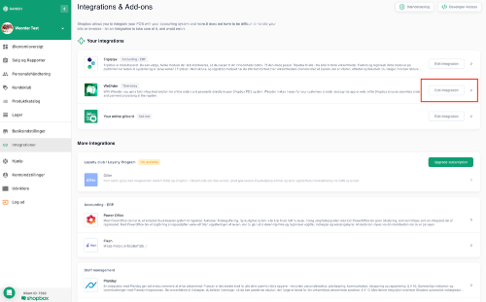
- Go to Integrations in the left-side menu in Shopbox Back Office.
- Find Weorder under Integrations & Add-ons.
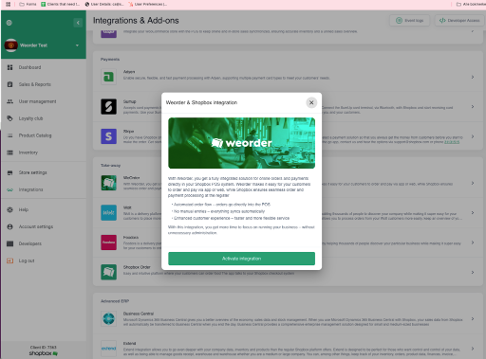
- If Weorder is not active yet, click Activate integration. If Weorder is already active, click Edit integration.
3. Connect to your Weorder account
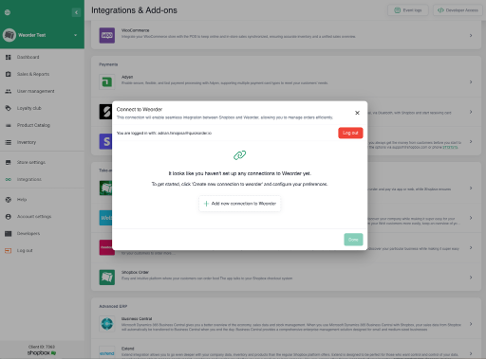
- In the Weorder & Shopbox integration window, click Add new connection to Weorder.
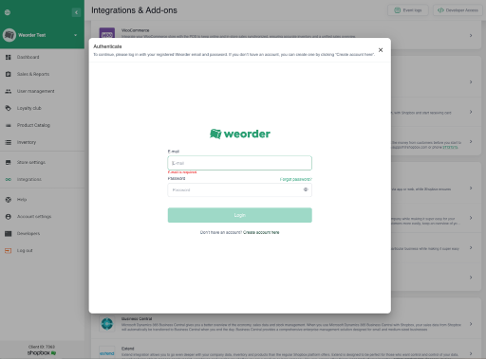
- Log in with your Weorder username and password.
- Follow the on-screen steps to allow Shopbox to connect to Weorder.
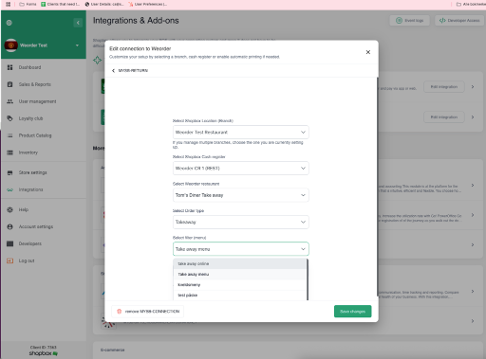
4. Select store, register, and menu filter
After logging in, connect the correct Weorder restaurant to the correct Shopbox setup.
- Select the Weorder restaurant/order type you want to connect.
- Select the correct Shopbox store or branch.
- Select the Shopbox cash register that should receive orders from Weorder.
- Select the Shopbox filter/menu you created for Weorder.
- Click Add connection or Save to create the connection.
5. Synchronise the filter
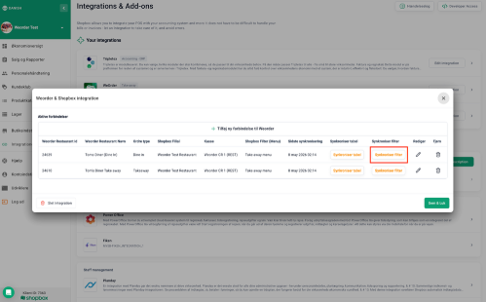
When the connection has been created, synchronise the filter. This sends the selected Shopbox menu/filter to Weorder.
- In the active connection list, find the connection you just created.
- Click Synchronise filter.
- When the synchronisation is complete, click Save & Close.
|
Important Whenever you change products, prices, or categories in the selected Shopbox filter, return to the Weorder integration and click Synchronize filter again. (NB: The filter automatically synchronizes every night at 02:14) Only the selected Shopbox filter/menu is sent to Weorder. |
You are ready
When the connection is active, the filter has been synchronised, and the menu is activated in Weorder, your Shopbox menu is ready to be used for Weorder ordering.