![Logos.webp]](https://help.shopbox.com/hs-fs/hubfs/Logos.webp?height=22&name=Logos.webp)
Create a stamp card
Before you start Create at least one discount reason under Store settings > Discount codes. Stamp cards apply a discount to eligible products, so you must select a discount reason when creating the card.
1. Sign in to my.shopbox.com and open Store settings > Stamp cards.
2. Select the + button in the top right corner to create a stamp card.
3. Enter the card details:
Name The name shown for the stamp card.
Type Select Punch card purchases.
Price The amount the customer pays for the card.
Total quantity The number of stamps available on the card.
Expiry days How many days the card remains valid from its issue date.
Discount reason Select a discount reason you created.
Tax Select the tax rate for the stamp card.
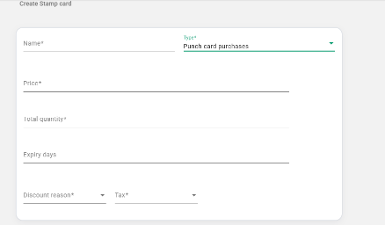
The stamp card details in Backoffice.
4. Scroll to Products. Search for or select the products that customers can redeem with this card.
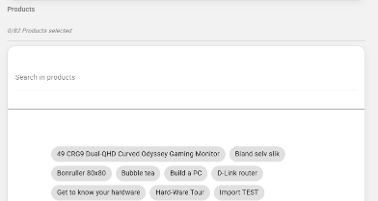
Search for eligible products in the Products section.
5. Set the number of stamps required for each selected product. Different products can require different numbers of stamps.
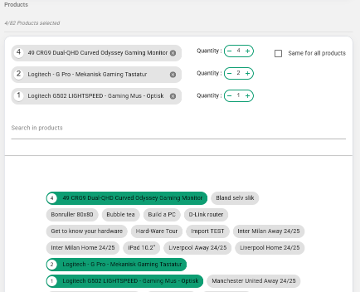
Set the stamp quantity for each product.
6. Save the stamp card.
Issue a stamp card in POS
1. Open POS and select the three dots at the top of the basket.
2. Select Issue Punch Card.
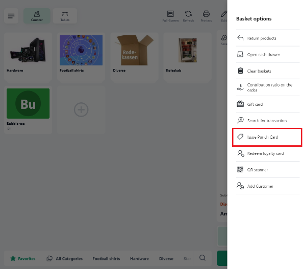
Choose Issue Punch Card from the basket options.
3. Choose the stamp card you want to issue and select Confirm.
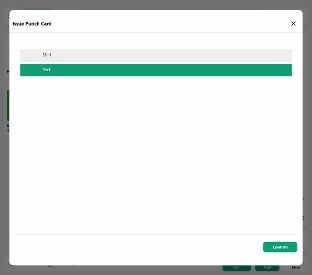
Select a card and confirm the choice.
4. The stamp card is added to the basket. Complete the sale to print the card for the customer.
Redeem a stamp card in POS
Add an eligible product to the basket, then use one of these methods to apply the stamp card:
Scan the card
Scan the printed card with a scanner connected to Shopbox. If you do not have a physical scanner, select Scan at the top of the basket and scan the card with the device. Shopbox registers the card and applies it to eligible products in the basket.
Enter the card code
1. Select the three dots at the top of the basket and choose Redeem loyalty card.
2. Enter the stamp card code in the Enter code field, select Add code, and then select Confirm.
Redeem a stamp card in self service
1. On the self service screen, select Add discount code at the bottom of the basket.
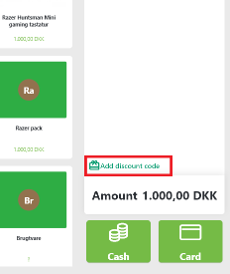
The Add discount code button in the self service basket.
2. Enter the stamp card code, select Add code, and then select Confirm. The redemption window works the same way as in POS.