![Logos.webp]](https://help.shopbox.com/hs-fs/hubfs/Logos.webp?height=22&name=Logos.webp)
1. Check the basics first
- Make sure the printer is turned on and that the power supply is firmly connected to both the printer and the power outlet.
- Check that there is paper in the printer and that the receipt roll is facing the correct way.
- Check all cables. Unplug them and plug them back in to make sure they are connected correctly.
- Turn off the printer for 10 seconds, then turn it on again. Also restart the iPad if the printer does not appear in Shopbox POS.
2. Gendan printeren i Shopbox POS
Følg trinene herunder, når printeren er tændt og forbundet via netværk, USB eller Bluetooth.
- Open the printer settings
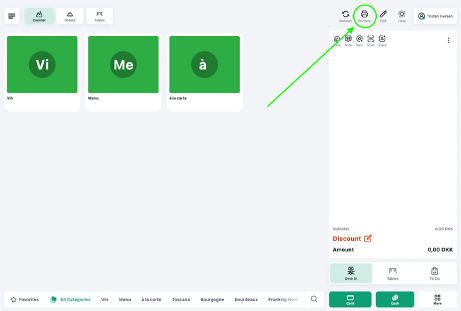
Open Shopbox POS and tap the printer icon at the top of the screen.
- Find the printer group and remove the old printer if a printer is already selected
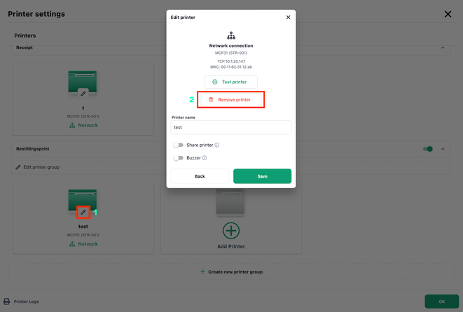
If there is already a printer in the printer group, you can open it using the pencil icon and select Remove printer. This clears the old connection so the printer can be added again.
- Add the printer again
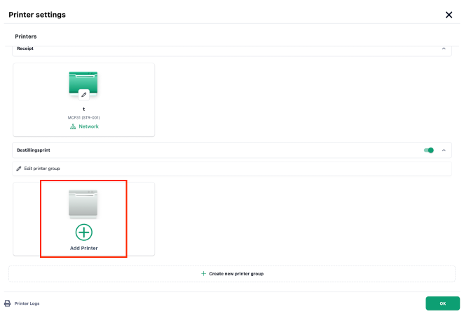
Tap Add Printer. Shopbox POS will now search for available printers. Select the printer you want to connect to.
- Make a test print
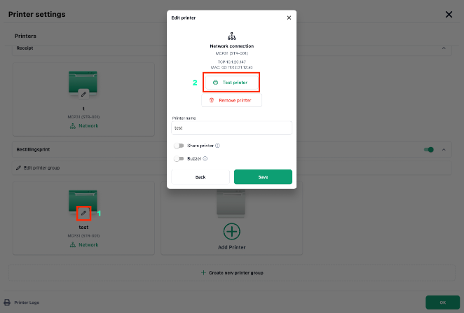
Once the printer has been added, tap the pencil icon on the printer and select Test printer. The printer should print a small test receipt that says I AM WORKING.
3. Review the printer group
If the printer works in Shopbox, but WeOrder orders are not printed, it may be because the correct categories have not been selected in the printer group.
- Tap the printer icon at the top of Shopbox POS.
- Find the relevant printer group.
- Tap Edit printer group.
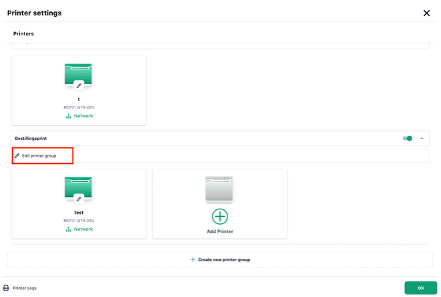
- Gennemgå de valgte kategorier og tjek at de korrekte er valgt. Hvis der er nogle relevante kategorier, som ikke er valgt, skal de vælges.
- Test om Weorder bestillinger kommer nu.
4. Choose the right type of troubleshooting
If the printer does not appear, or the test print does not work, the next step depends on how the printer is connected.
|
Connection |
How to identify it |
Check this first |
|
Network/LAN |
The printer is connected to a router or switch with a network cable. |
Check the LAN cable, the router, and that the iPad and printer are on the same network. |
|
USB/USB-C |
The printer is connected directly to the iPad with a cable. |
Check that the cable is connected to the correct port and that the iPad is charging. |
|
Bluetooth |
The printer is paired with the iPad via Bluetooth. |
Check that Bluetooth is turned on and that the printer is shown as connected. |
5. If the printer is connected via network/LAN
- Check that the network cable is firmly connected to both the printer and the router/switch.
- Try another network cable or another port on the router/switch if possible.
- Check that the iPad has internet access and is on the same network as the printer.
- Restart the router if the network is not working. Once the network is online again, restart the printer as well.
- Go back to Shopbox POS, tap Add Printer, and select the printer when it appears on the list.
|
Tip |
6. If the printer is connected via USB or USB-C
- Make sure the cable is firmly connected to both the printer and the iPad.
- Use the correct USB/iPad port on the printer if the printer has multiple ports.
- Check whether the iPad is charging through the printer. If it is not, the connection may be disconnected. Try unplugging the cable and plugging it in again.
- Try another cable if the printer does not appear. Some cables can only charge and cannot transfer data.
- Once the cable is connected correctly, add the printer again in Shopbox POS and make a test print.
7. If the printer is connected via Bluetooth
- Open the Bluetooth settings on the iPad and check that Bluetooth is turned on.
- Check whether the printer is shown as connected. For example, the printer may be named mC-Print3 followed by numbers or letters.
- If the printer does not connect, you can select Forget This Device, restart both the printer and the iPad, and pair the printer again.
- Make sure the printer is not already connected to another iPad.
- Move the iPad closer to the printer, then try adding the printer again in Shopbox POS.
8. Test WeOrder once the test print works
- First, make a test print in Shopbox POS. Only continue once the test receipt comes out of the printer.
- Then place a test order in WeOrder.
- If the test print works, but the WeOrder order still does not print, the issue may be related to the printer group or the WeOrder setup. Contact Shopbox Support and we will help check the setup.