![Logos.webp]](https://help.shopbox.com/hs-fs/hubfs/Logos.webp?height=22&name=Logos.webp)
In Shopbox, you can choose how your kitchen receipts, also known as production receipts, are divided and displayed in the kitchen. You have two options:
- Grouping by courses
- Grouping by categories or tags
Below, we explain the difference and how you can change the settings.
Grouping by courses
When you choose to divide kitchen receipts by courses, the products are sorted according to the course they belong to, such as the first course, second course and third course.
This option is mainly used by restaurants that serve multiple courses where the serving order is important.
Example
-
First course: Cacio e pepe
-
Second course: Venison ragout
-
Third course: Tiramisu
Grouping by categories and tags
The other option is to divide the receipts according to your product categories or tags.
Categories
Products are displayed under their assigned category.
For example, if you have the categories Hot dishes, Craft beer and Soft drinks, the receipt will be divided as follows:
-
Hot dishes
-
Cacio e pepe
-
Venison ragout
-
Fish of the day
-
-
Craft beer
-
Dark Lager
-
Hazy IPA
-
-
Soft drinks
-
Cola
-
Tags
Tags work as labels that you can add to products, such as Food, Drinks, Takeaway or White wine.
When you choose to group products by tags, they are grouped according to the tags assigned to them.
Example
-
Food
-
Fish of the day
-
Cacio e pepe
-
-
Drinks
-
Cola
-
Hazy IPA
-
Tags provide flexibility because products can be added to multiple tag groups without changing their category.
Which option should you choose?
-
Courses: Choose this option if you serve multiple courses and the serving order is important
-
Categories or tags: Choose this option if you want a clear visual division based on product types. This is ideal for cafés, bars and businesses with many different types of products
How to change the kitchen receipt setup
You can easily change how your kitchen receipts are divided.
-
Tap the menu button with the three horizontal lines in the top-left corner of Shopbox POS
-
Scroll down and tap Settings
-
Under the Hardware heading, select Printers
-
Select one of the following options:
-
Create a new printer group
-
Select Edit printer group if you already have a setup
-
-
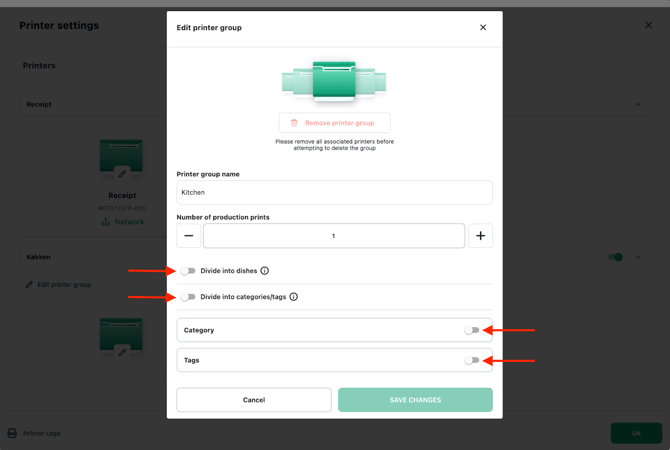
You can then enable or disable the following settings:
-
Divide into dishes
-
Divide into categories/tags
-
-
Enable the preferred setup and tap Save changes
Below is a visual example of the menu where you can change these settings: