![Logos.webp]](https://help.shopbox.com/hs-fs/hubfs/Logos.webp?height=22&name=Logos.webp)
In this article
- Add a discount to a customer group
- Set an expiration date
- Set time restrictions
- Restrict discounts to specific items or menus
Add a discount to a customer group
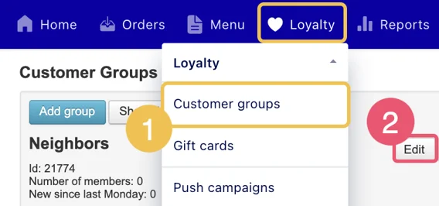
- Go to Loyalty > Customer groups.
- Find the customer group and select Edit.
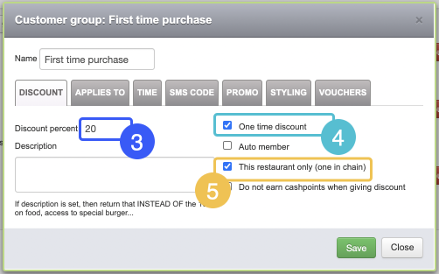
- Set the discount percentage.
- Optional: select One time discount if the discount should only be used once per customer.
- If you have more than one restaurant, choose whether the discount applies to the whole chain or only to the restaurant you are logged in to.
- Select Save.
Set an expiration date
Use an expiration date when the discount is only available for a limited period, for example for a holiday promotion.
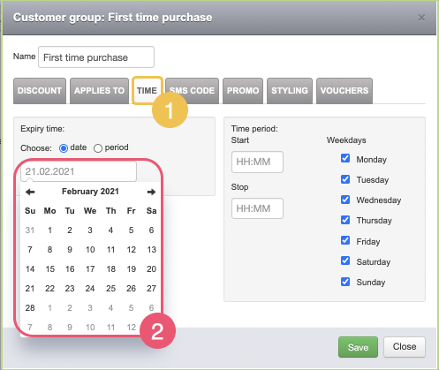
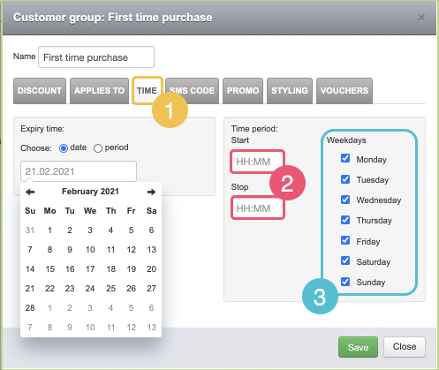
- Open the customer group and go to the Time tab.
- Under Expiry time, choose Date or Period.
- Select the expiration date or period.
- Select Save.
Set time restrictions
Use time restrictions when the discount should only be available at specific times or on specific days, for example for a lunch offer.
- Open the customer group and go to the Time tab.
- Optional: enter a Start and Stop time.
- Optional: select the weekdays when the discount should be active.
- Select Save.
Restrict discounts to specific items or menus
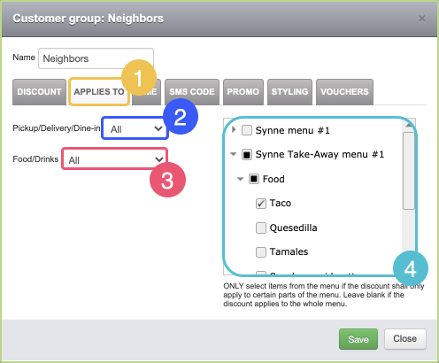
Use Applies to when the discount should only apply to specific order types, menus, categories, or items. For example, you can exclude alcohol or limit a discount to a specific menu category.
- Open the customer group and go to the Applies to tab.
- Optional: limit the discount to Pick-up, Delivery, or Dine-in.
- Optional: limit the discount to food or drinks.
- Select the menus, categories, or items the discount should apply to.
- Leave the menu/category selection blank if the discount should apply to the whole menu.
- Select Save.