![Logos.webp]](https://help.shopbox.com/hs-fs/hubfs/Logos.webp?height=22&name=Logos.webp)
Configure the Simple Multiple Categories setup
After the connection is complete, continue with the accounting settings. In this setup, you can assign individual accounts to your product categories and create a more detailed accounting structure.
Export invoice
Choose how invoices created in Shopbox should be handled in Tripletex:
- Deactivate: Shopbox invoices are not sent as invoices. The revenue is posted as a revenue journal entry instead.
- Export Draft: Your invoices are transferred to Tripletex as draft invoices, and you send them from Tripletex.
- Book Invoice: Your invoices are posted and created as invoices in Tripletex, but they are sent from Shopbox.
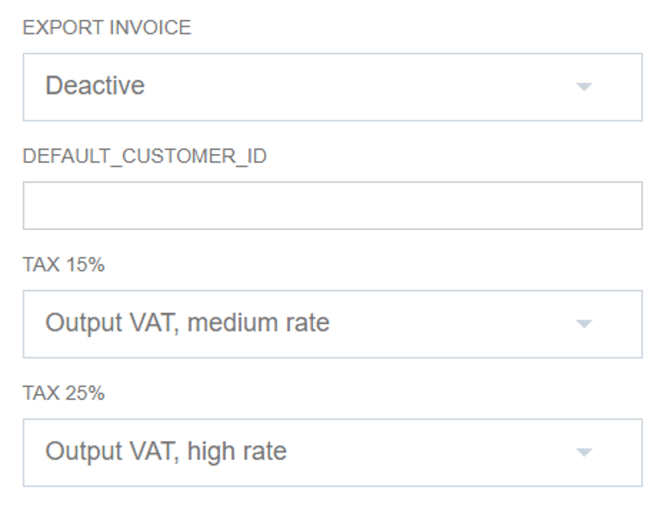
Select your invoice export method and map your VAT rates.
VAT choices
Map the VAT rates from Shopbox to the VAT accounts in Tripletex where they should be posted. Choose the correct account for each VAT rate you use.
Category accounts
Assign an account to each product category. You can use the same account for all categories or choose different accounts if you want to track revenue separately.
- Each field corresponds to a product category from Shopbox.
- Ucategorized is your fallback option if a product category has not been assigned an account.
- Most businesses use their most common revenue account as the Uncategorized account.
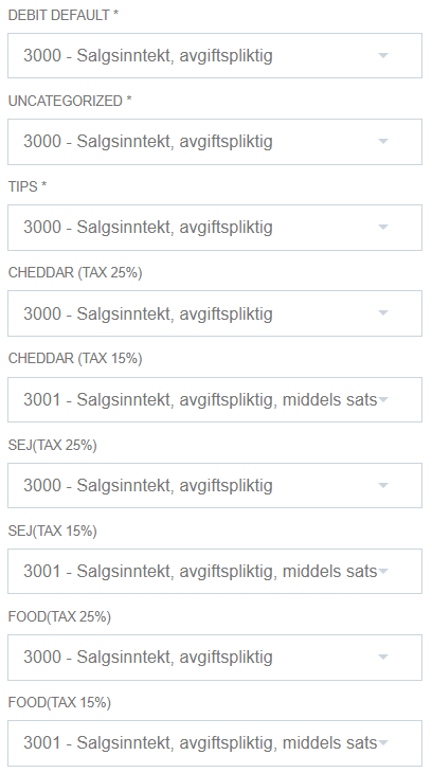
Assign accounts to each product category in the integration.
Default and payment accounts
- Credit Default: Used as the fallback account when a revenue-type field has not been filled in.
- Cash: Used for revenue paid in cash.
- Cash Difference: Used for cash discrepancies discovered during end-of-day counts.
- Mobile payment: Select the account for MobilePay or similar mobile payments.
- Gift card: Select the account for gift card payments.
- Invoice: Select the account used when invoicing directly from Shopbox.
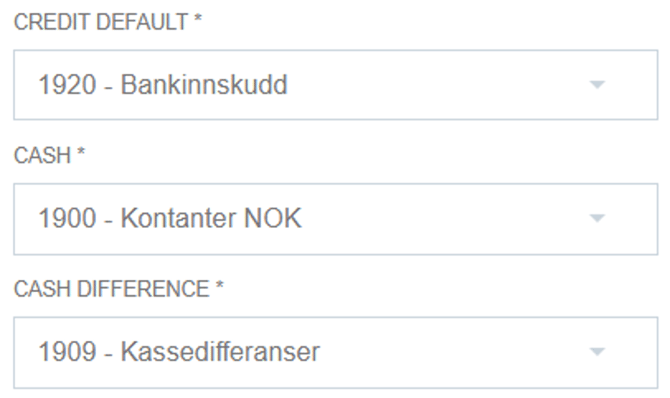
Set the fallback credit account and configure cash-related postings.
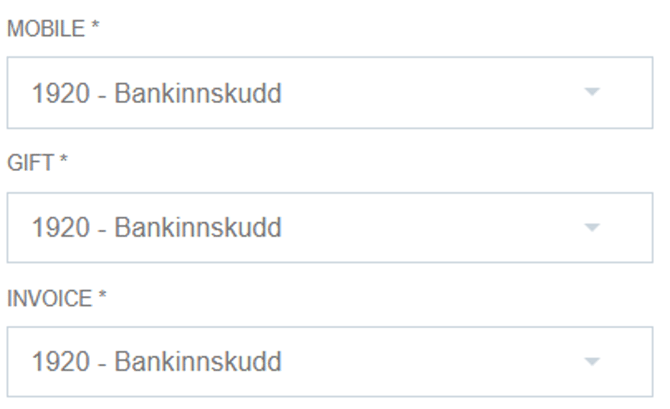
Map mobile payments, gift cards, and invoice sales.
Card accounts
- Card Local: Used for local card payments.
- Card International: Used for international cards such as Visa and Mastercard.
- Card Other: Used for other card types.
- Card Unknown: Used as a fallback when the card type cannot be identified during the transfer.
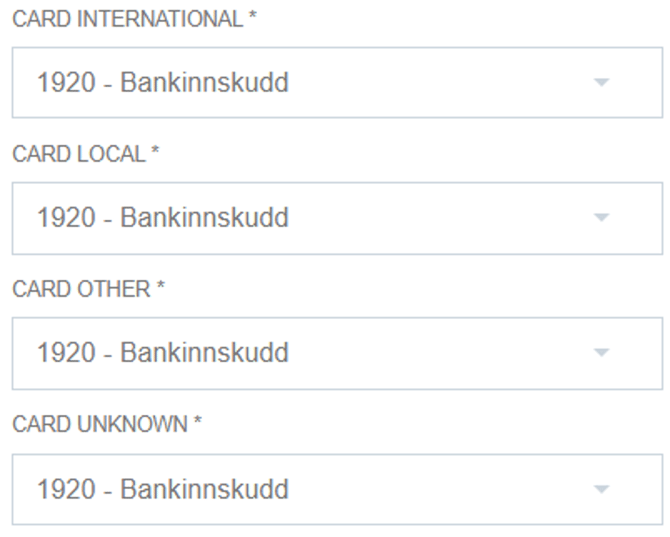
Map the different card payment types to the correct accounts.