![Logos.webp]](https://help.shopbox.com/hs-fs/hubfs/Logos.webp?height=22&name=Logos.webp)
In this article
- Add all customers automatically with Auto member
- Add customers with a promo code
- Add customers with an SMS code
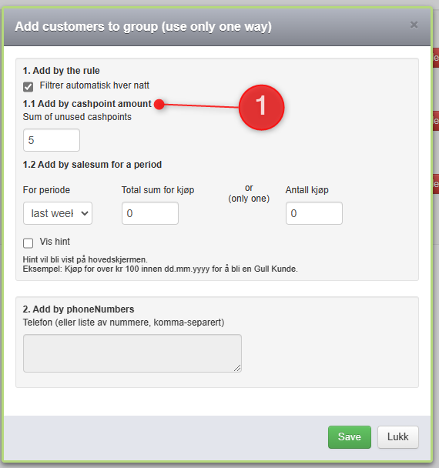
- Add customers by purchase amount or number of purchases
- Add customers manually by phone number
- Add customers by unused cashpoint amount
Add all customers automatically with Auto member
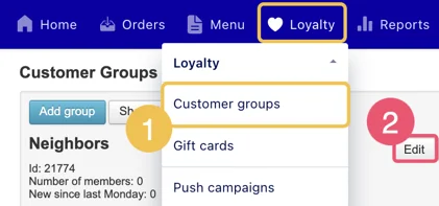
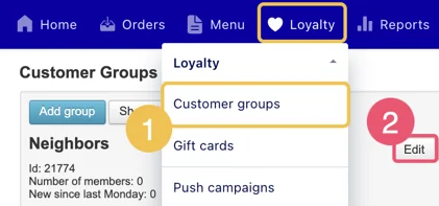
- Go to Loyalty > Customer groups.
- Find the customer group and select Edit.
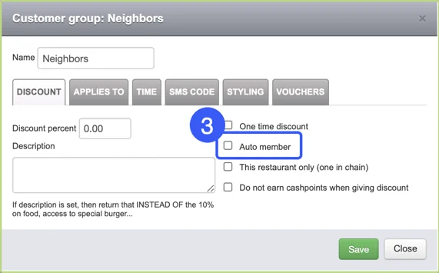
- Select Auto member.
- Select Save.
Add customers with a promo code
Promo codes are useful when you want customers to join a group through a code, for example from a Facebook or Instagram campaign, or for a student discount.
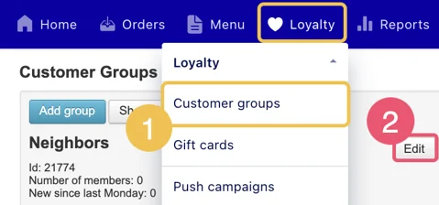
- Go to Loyalty > Customer groups.
- Find the customer group and select Edit.
- Open the PROMO tab.
- Enter the promotion code.
- Enter the message you want the customer to receive after using the code.
- Select Save.
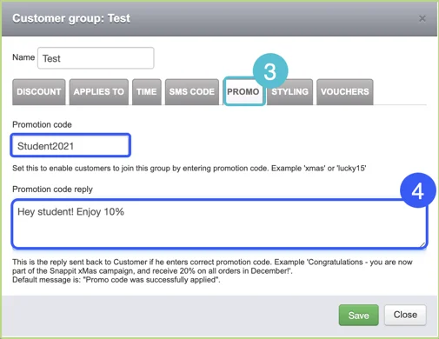
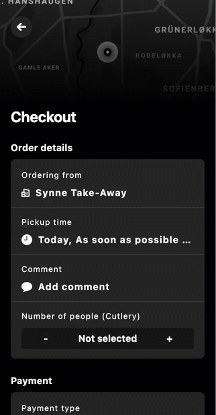
When customers enter the promo code, they are automatically added to the customer group.
Add customers with an SMS code
- Go to Loyalty > Customer groups.
- Find the customer group and select Edit.
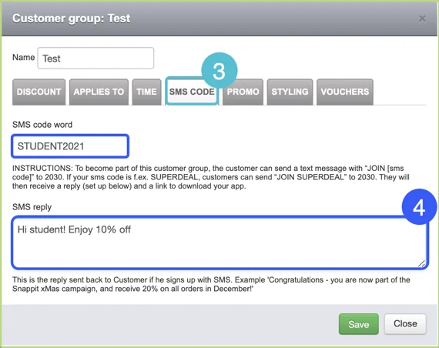
- Open the SMS CODE tab.
- Enter the SMS code word.
- Enter the SMS reply message.
- Select Save.
Add customers by purchase amount or number of purchases
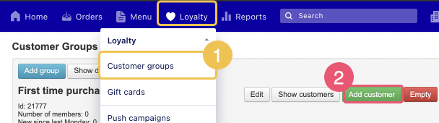
- Go to Loyalty > Customer groups.
- Select Add customer.
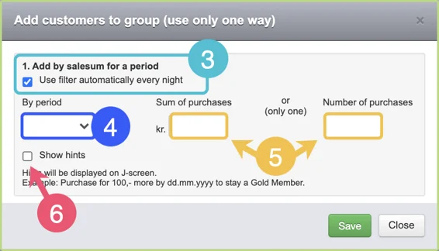
- Select Use filter automatically every night if the group should update automatically.
- Choose the time period.
- Set either Sum of purchases or Number of purchases.
- Optional: select Show hints if you want customers to see hints on the screen.
- Select Save.
Add customers manually by phone number
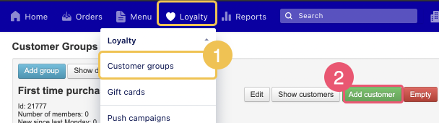
- Go to Loyalty > Customer groups.
- Select Add customer.
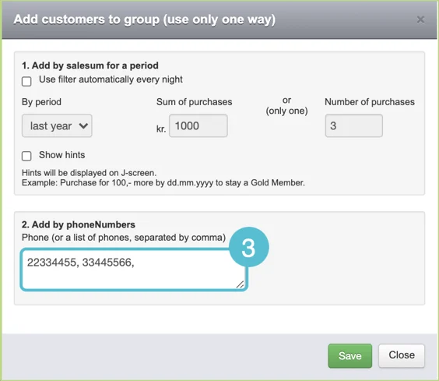
- Enter the phone numbers. Separate multiple numbers with commas.
- Select Save.
Add customers by unused cashpoint amount
You can target guests who have unused cashpoints and remind them to come back and use them.
- Go to Loyalty > Customer groups.
- Select Add customer.
- Enter the unused cashpoint amount.
- Select Save.
Example: Add guests to the customer group when they have more than 50 unused cashpoints on their account.