![Logos.webp]](https://help.shopbox.com/hs-fs/hubfs/Logos.webp?height=22&name=Logos.webp)
Before you begin
To ensure that the order flow works correctly, make sure that:
-
The products have been created and placed in the correct categories
-
Printer groups have been configured and connected to your printers, so specific items are printed on the correct printer. You can read our article about how kitchen and production printing works here.
-
Any takeaway integrations, such as Weorder, Wolt or Mealo, have been connected correctly
Types of takeaway orders
There are two ways to create takeaway orders in Shopbox.
Manual takeaway orders
Manual takeaway orders are created directly in Shopbox from the POS. This typically happens when the customer places an order:
-
In the store
-
Over the phone
-
By email or message
-
Outside an external takeaway platform
-
The staff manually enter the items, pickup time and customer information.
Orders from takeaway integrations
Orders from takeaway integrations are automatically received in Shopbox from an external platform, such as:
-
Wolt
-
Weorder
-
Other takeaway or ordering systems
-
These orders appear in the order overview, where staff can accept, reject, prepare and complete them.
Manual takeaway orders
A manual takeaway order is created directly from the POS in Shopbox.
This order type is relevant when staff take the order themselves and create it on behalf of the customer.
How to create a manual takeaway order
-
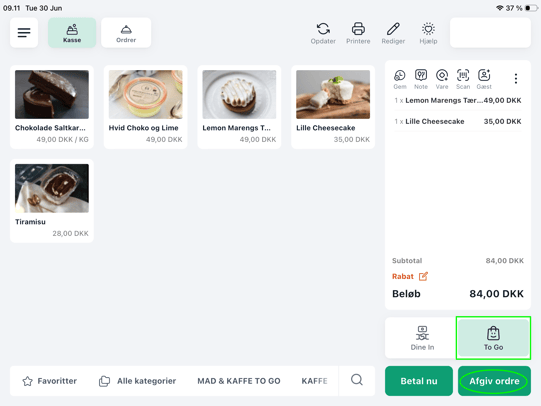
Select the items the customer wants
-
Select To Go on the right side of the screen
-
Click Place order
-
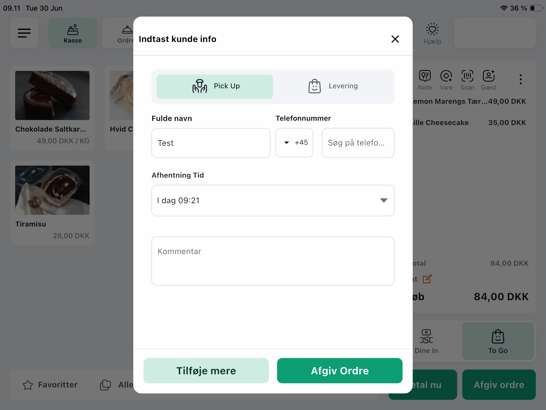
Enter the customer information:
-
Full name
-
-
-
Phone number, if relevant
-
Pickup time
-
Any comments
-
-
Select whether the order is for:
-
Pickup
-
Delivery
-
-
Click Place order
The order is now created in Shopbox and appears in the order flow.
Manual order for immediate pickup
If the pickup time is set to now or close to the current time, the order becomes an active takeaway order.
It appears under Outgoing, where staff can prepare and complete it.
How to handle the order
-
Go to Orders
-
Find the order under Outgoing
-
Prepare the order
-
Click Pay and complete when the order is ready and the customer has arrived to pay
-
Select a payment method, such as:
-
Card
-
-
-
Cash
-
-
-
Another payment method
-
-
Complete the payment
The order is completed and moves forward in the order flow.
Manual order for later pickup
If the customer wants to collect the order at a later time, you can select a future pickup time when creating the order.
When you click Place order, you must choose how Shopbox should handle the scheduled order.
You can typically choose between two options.
Option 1: Accept and print now
Select this option if the order should be accepted and printed immediately.
This means that the order:
-
Is created immediately
-
Is printed immediately
-
Is placed in the active order flow
-
Can be prepared whenever the staff choose
This option is useful if the staff want the order to be visible immediately.
Option 2: Print or activate later
Select this option if the order should only be activated closer to the pickup time.
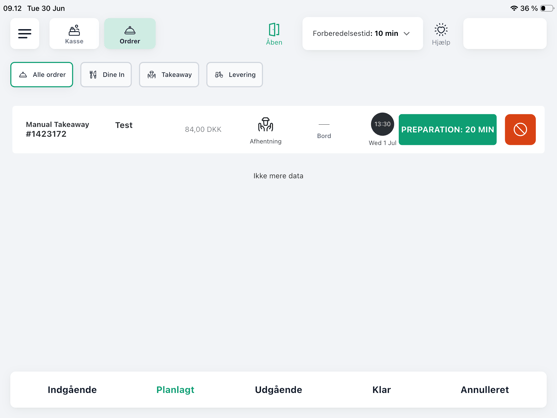
You can select a preparation time, such as 20 minutes.
This means that Shopbox only moves the order to Outgoing and prints the kitchen receipt when there are 20 minutes remaining until pickup.
Until then, the order appears under Scheduled.
This option is useful if future orders should not appear in the overview of outgoing orders too early.
Orders from takeaway integrations
If you use a takeaway integration, such as Wolt or Weorder, orders can be received directly in Shopbox.
What does an integration order contain?
An order from a takeaway integration can typically include:
-
The customer’s name
-
Phone number
-
Order number
-
Pickup time
-
Ordered items
-
Payment status
-
The name of the integration, such as Weorder
-
Any comments from the customer
If the order has already been paid online, it will appear as paid in Shopbox.
How to handle an order from an integration-
Go to Orders
-
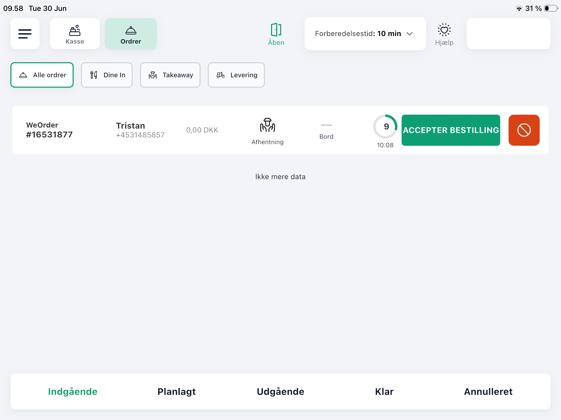
Find the order under Incoming
-
Click the order to view the details
-
Check:
-
The customer’s name
-
Pickup time
-
Items
-
Payment and status
-
Any comments
-
-
Click Accept order if the order can be fulfilled
-
Shopbox sends the order to the printer if the printer groups have been configured correctly
-
Prepare the order
-
Complete the order when it is ready
Understanding the tabs in the order overview
The order overview helps you keep track of how far an order has progressed through the order flow.
Incoming
This is where new orders that require action appear.
This primarily applies to orders from takeaway integrations, where staff must accept or reject the order.
Scheduled
This is where orders that should be handled later appear.
For example, this could be a manual takeaway order for pickup the following day, where Shopbox should only activate the order 20 minutes before pickup.
Outgoing
This is where accepted orders that need to be prepared appear.
These can include:
-
Manual takeaway orders
-
Accepted integration orders
-
Scheduled orders that have now become active
Ready
This is where completed orders or orders that are ready for pickup appear.
Cancelled
This is where rejected or cancelled orders appear.