![Logos.webp]](https://help.shopbox.com/hs-fs/hubfs/Logos.webp?height=22&name=Logos.webp)
1. Start the terminal for the first time
When starting the terminal for the first time, you must complete the setup guide on the screen.
- Select language.
- Search for updates.
- Activate the terminal and confirm the company details.
- Select "Ejer/Owner" or create a terminal user.
- Create a PIN code.
- Accept the terms of use.
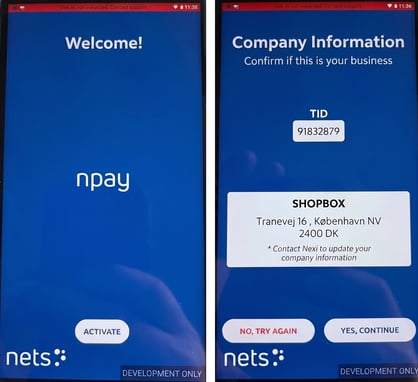
Example of activation and confirmation of company details on Npay.
When the setup is complete, the Npay home screen should automatically be displayed on the terminal.
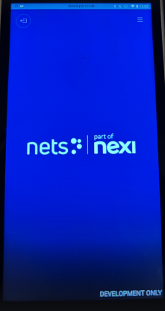
The Npay home screen on the Nets/Nexi N950 terminal.
2. Add the terminal in Shopbox POS
On the device where Shopbox POS is running, you must add the terminal under card terminals in settings.
- Open Shopbox POS.
- Tap the menu in the top left.
- Go to Settings.
- Select Card terminals.
- Add a new terminal connection.
|
Field in Shopbox |
What should you enter? |
Format/eksempel |
|
Terminal ID |
The terminal's ID from Nets/Nexi |
t- followed by 10 digits |
|
Username |
API Token ID |
Starts with npi_ |
|
Password |
API Token Secret |
Starts with nps_ |
Terminal ID format
The Terminal ID must start with t- and be followed by 10 digits. If your Terminal ID is shorter than 10 digits, you must add leading zeros in front of the number.
|
Terminal ID from Nets/Nexi: e.g., 92933375 |
Save the terminal connection once all information has been entered.
3. Test the connection
Start a payment from Shopbox POS to test if the connection works. If the terminal receives the payment, the setup has been completed correctly.
4. Connect the terminal to Wi-Fi
The terminal is normally connected via a SIM card during the first setup. If you want to connect it to Wi-Fi or change the network settings, do the following:
- Go to the terminal's home screen.
- Open Settings.
- Select Network settings.
- Turn Wi-Fi on and select the desired network.
- Turn the mobile connection on or off if the terminal has a SIM card installed.
Relevant icons:  Settings
  Network settings
5. Activate or change tips
Tips can be activated, deactivated, and configured directly on the terminal under Business settings.
- Go to the terminal's home screen.
- Open Settings.
- Select Business settings.
6. Troubleshooting
The terminal is not receiving payments from Shopbox
- Check that the terminal is turned on.
- Check that the terminal has an internet connection via SIM card or Wi-Fi.
- Ensure that Npay is open and running in the foreground.
- Check that the Terminal ID is entered correctly in Shopbox.
- Check that the API Token ID and API Token Secret are entered correctly.
- Restart the terminal if the problem persists.
The terminal cannot go online
- Check that the SIM card is active if the terminal uses a mobile connection.
- Check the Wi-Fi connection if the terminal uses Wi-Fi.
- Go to Settings > Network settings and confirm that the desired network type is activated.
- Restart the terminal.
The payment does not go through
- Check the internet connection.
- Ensure that Npay is running in the foreground.
- Restart the terminal.
- Try the payment again from Shopbox POS.