![Logos.webp]](https://help.shopbox.com/hs-fs/hubfs/Logos.webp?height=22&name=Logos.webp)
Use this guide when you have made menu changes in your POS and need to update the menu in Weorder.
Table of contents
Update menu in Shopbox
For Shopbox, you update the Weorder menu by synchronising the Shopbox filter from the Weorder integration in Shopbox. After the filter has been synchronised, Weorder will be updated.
- Log in to Shopbox BackOffice.
- Click Integrations in the left-side menu.
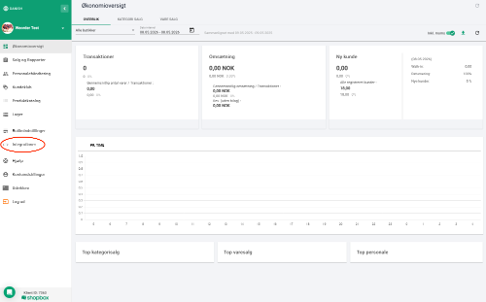
Shopbox BackOffice: open Integrations from the left-side menu. -
Find Weorder under Your integrations and click Edit integration.
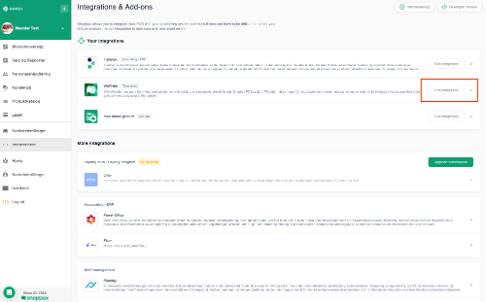
Integrations & Add-ons: open the Weorder integration.
-
In the Weorder & Shopbox integration window, find the relevant connection and click Synchronise filter.
-
If you have more than one Weorder connection, for example Takeaway and Dine in, synchronise the filter for each connection that should be updated.
-
Click Save & Close.
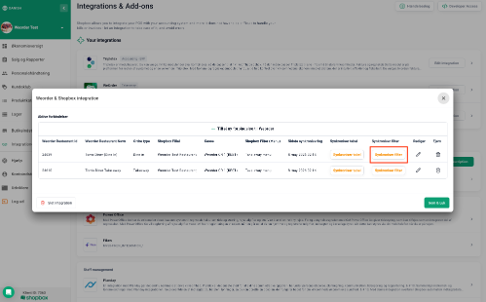
Weorder & Shopbox integration: synchronise the filter for the relevant connection.
Result: Your Weorder menu is now updated with the products and categories from the selected Shopbox filter/menu.
Update menu in PCK
If you use PCK, follow the PCK Weorder connection manual. The manual is available in Norwegian:
Download the PCK Weorder connection manual (Norwegian)
When the PCK connection is ready, pull the menu in Weorder:
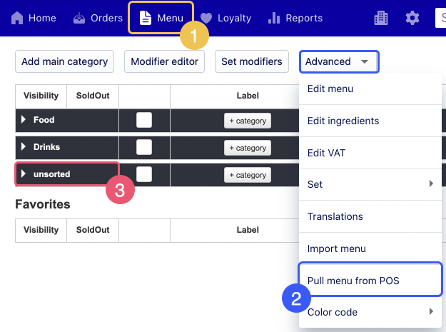
- Go to Menu in Weorder.
- Select Advanced > Pull menu from POS.
- Items will appear under Unsorted. Drag the items into the correct categories.
Update menu in KDR
If you have recently made changes in KDR, it can take some time before the changes are visible when you pull the menu.
- To force the sync, open Orderman and click Synkroniser nå.
- Then go back to Weorder.
- Go to Menu > Advanced > Pull menu from POS.
- Items will appear under Unsorted. Drag the items into the correct categories.
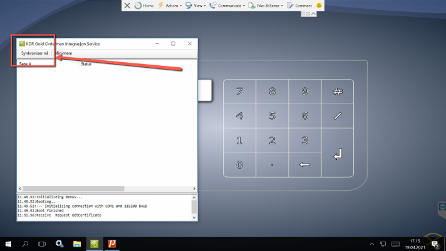
Note: This screenshot was provided by KDR and might be out of date.