![Logos.webp]](https://help.shopbox.com/hs-fs/hubfs/Logos.webp?height=22&name=Logos.webp)
In this article we will get through:
Importing gift cards
Preparing your gift card document
If you want to import gift cards, you need access to Google Sheets or Excel.
When preparing your gift card file, keep the following in mind:
- You can import gift cards in .csv, .xls or .xlsx formats
- You can import the following four values for each gift card:
-
Customer name
-
Customer email
-
Gift card amount (required)
-
Comment
-
- If you choose not to import a customer name, Shopbox will automatically assign the name “Guest”
- When importing gift cards, the gift card amount is not counted as revenue.

Once your document is ready, download it.
Import your document
When you want to import gift cards into Shopbox, the first thing you need to do is log in to my.shopbox.com.
-
Click Store Settings in the menu on the left
-
Select Gift Cards & Coupons
-
In the bottom right corner, click Import
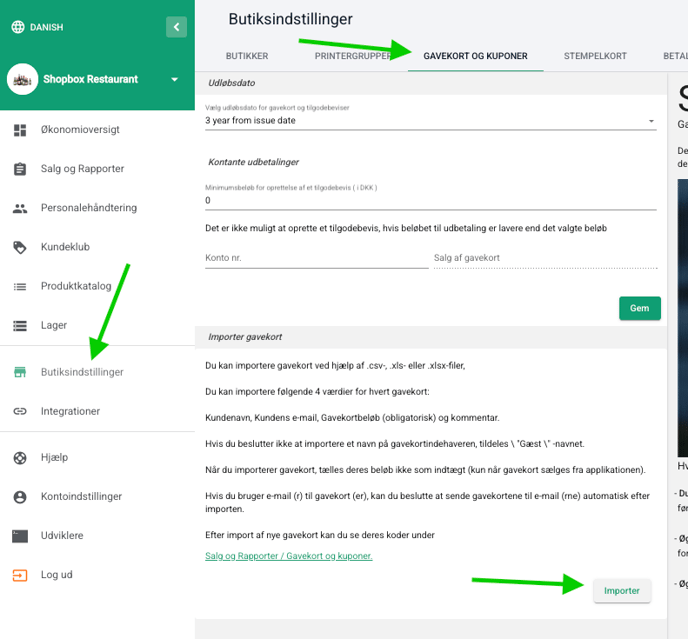
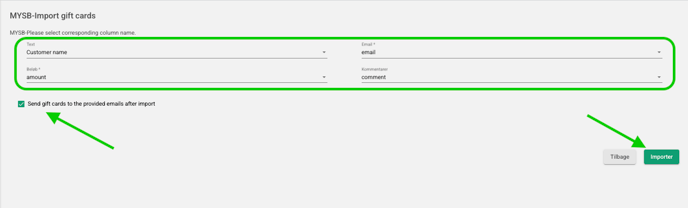
Choose the file you downloaded earlier. Match the fields in Shopbox with the correct column headers in your file.
If you have followed the guide, it will look like this:
-
Text = Customer Name
-
Email = Email
-
Amount = Amount
-
Comment = Comment
If you want Shopbox to send the gift cards to customers, check the box.
(This will send the gift card to the email address from your file)
When you are done, click Import
Your gift cards are now imported and can be found in the gift card overview.
Exporting gift cards
If you want to export all of your gift cards, or only gift cards with a specific status, follow these steps:
-
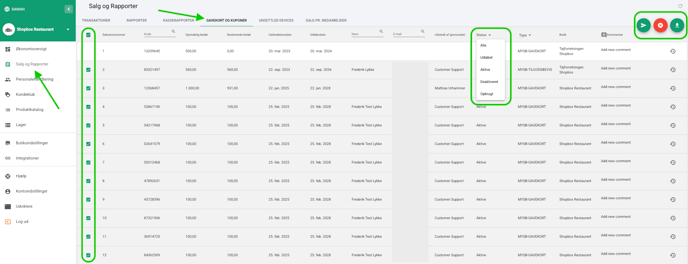
Log in at my.shopbox.com
-
Click Sales & Reports in the left menu
-
Select Gift Cards & Coupons
-
Choose the status you want to export
-
Mark the gift cards you want to export
-
In the top right corner, choose whether to have the file sent to you or download it directly
Congratulations! You now know how to import and export gift cards in Shopbox.