![Logos.webp]](https://help.shopbox.com/hs-fs/hubfs/Logos.webp?height=22&name=Logos.webp)
Gift cards can now be issued in three different ways:
-
Standard Issue
The classic workflow remains available, so staff can issue a digital gift card the same familiar way as before. -
Physical NFC Gift Cards (new)
You can now create gift cards directly on a physical NFC enabled card. This gives you durable, reusable gift cards customers can keep in their wallet. -
Custom Code Gift Cards (new)
If you need tighter control, for example if you use pre printed cards or you want to match codes from another system, you can now manually define the gift card code during creation.
In addition, the updated Gift Card feature includes new management improvements designed to speed up service and reduce mistakes:
-
Attach Gift Cards to Customer Accounts (new)
Link a gift card to a customer profile so it is always easy to find. During redemption, staff can simply pick the gift card from the customer account. That means less searching, fewer errors, and a smoother checkout experience. -
Top-Up Existing Gift Cards (new)
Instead of issuing a new card, you can now add value to an existing one. This makes gift cards reusable and helps reduce wasted cards. -
Detailed Status, Balance & History View
When redeeming a gift card, staff can instantly see the current balance, status, and a complete transaction history. This adds transparency and helps prevent errors. -
Redeem Expired Gift Cards (new)
If your store policy allows exceptions, expired gift card can now be redeemed. This gives you more flexibility in customer service situations.
________________________________________________________________________________________________
How It Works (Step-by-Step)
How to configure and connect an NFC Reader
To issue, redeem, or top up NFC gift cards, your POS must be connected to a compatible NFC reader. This section explains how to add, edit, and remove NFC readers in POS settings.
-
Only one NFC reader can be active at a time.
-
If the reader appears offline, check Bluetooth pairing or physically reconnect the device.
-
The POS will show clear warnings during gift card actions if the NFC reader is not configured or offline.
-
Assign clear names to readers (e.g., “Bar NFC Reader”, “Register 1 NFC Reader”) to help staff identify them quickly.
Add a New NFC Reader
-
Go to Settings in the POS sidebar.
-
Under Hardware, select NFC reader.
-
If no reader is configured yet, you will see an empty state with an option to Add NFC reader.
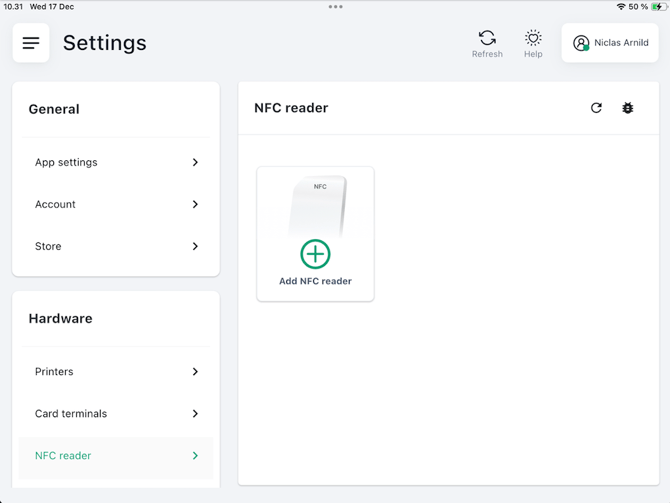
Tap Add NFC reader to begin setup.
-
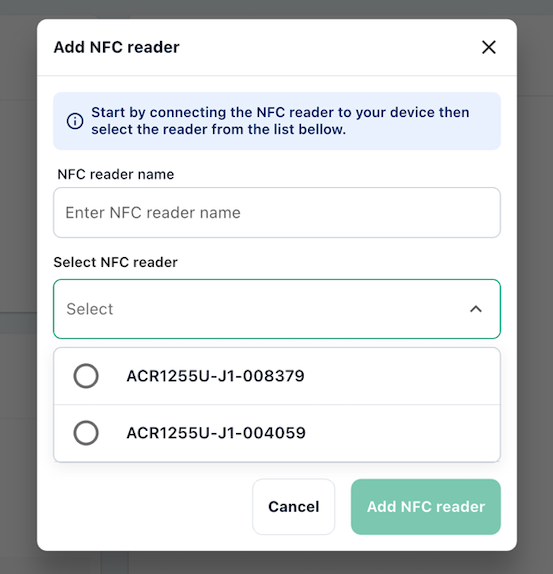
Enter a name for the reader (e.g., “Front Counter Reader”).
-
Tap the Select NFC reader dropdown to view available connected devices.
The POS will display a list of Bluetooth-connected NFC-enabled card readers, such as:
-
ACR 5214U
-
ACR 2137U
Select the correct reader from the list (you can find the ACR number on the back of the card reader)
-
Tap Add NFC reader.
-
The POS will save your configuration.
After adding the device, you are returned to the NFC reader settings page.
You will now see:
-
The NFC reader card
-
Its name
-
A status indicator showing whether the reader is Online or Offline.
Edit or Remove an Existing NFC Reader
If you need to update or remove the reader:
-
Tap the edit icon on the reader card.
-
You may:
-
Rename the reader
-
Change which NFC device is selected
-
Or tap Remove NFC reader to disconnect it completely
-
Tap Save changes when finished.
_____________________________________________________________________
Accessing the feature
-
Tap the Basket Options icon (three dots).
-
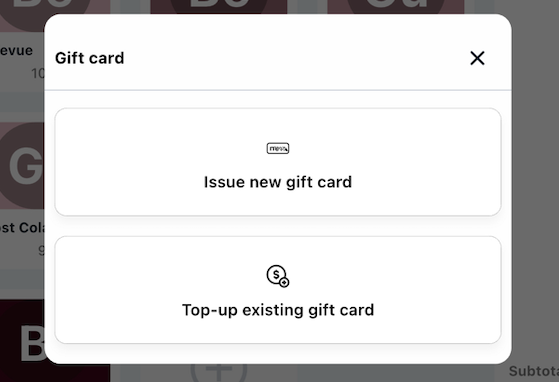
Select Gift Card from the options list.
-
Choose whether to Issue New Gift Card or to Top-up existing gift card
______________________________________________________________________
Using the feature
How to Issue a New Gift Card
This guide covers all options available when issuing a new gift card in the POS, including Standard, NFC (physical card), and Custom Code gift cards.
Choose Gift Card Type
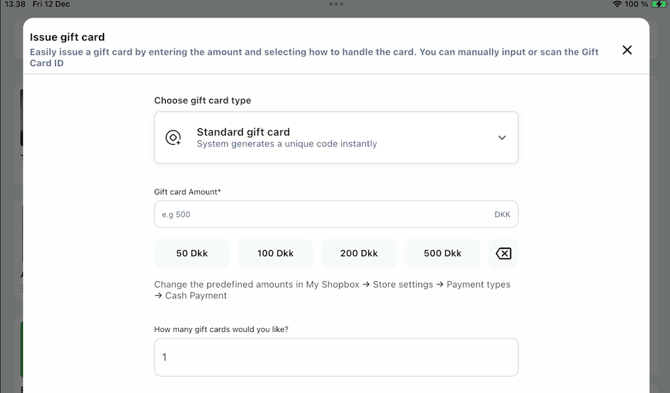
At the top of the screen, select one of the three gift card types:
A. Standard Gift Card (System-generated code)
-
The system automatically creates a unique gift card code.
-
You will have the option to create multiple gift cards (not available for NFC and custom gift cards)
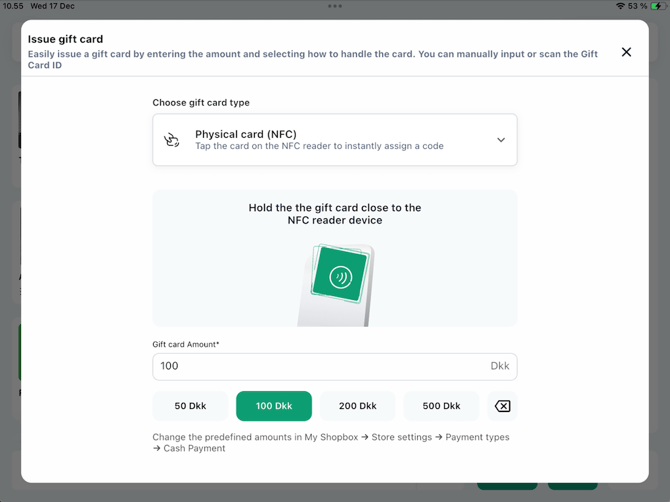
B. Physical Card (NFC) — new
-
The user is guided on how to present the “Physical card (NFC)” to the reader and informed of any errors, along with steps to resolve them.
-
The system will create and write a unique gift card code to the card.
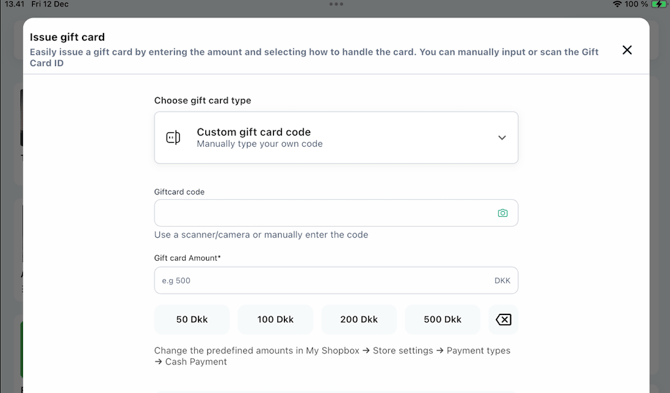
C. Custom Gift Card Code — new
-
Enter or scan your own predefined gift card code.
-
The system validates the code and warns if it already exists.
Enter Gift Card Amount
You can either:
-
Enter a manual amount, or
-
Tap one of the predefined amounts: 100, 250, 500, 1000 DKK
(Values may differ depending on store settings)
Select Delivery Method(s)
You can choose to add a sender and recipient name. This is optional, and the details will appear on the gift card. This is not available for NFC.
Here you can also choose one or more delivery methods. They will be sent once the payment is completed:
-
Print the gift card(s) (automatically selected)
-
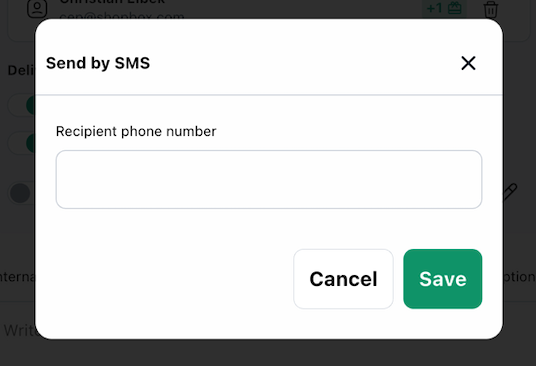
Send by SMS
-
Send by e-mail
If SMS or email is selected and the phone number or email is missing, the POS will prompt you to add it.
If the gift card is attached to a customer, phone number and email are auto filled when available.
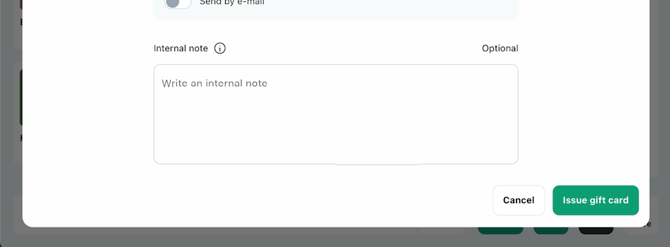
Add Internal Note (Optional)
Add an internal note for staff context, for example Customer requested manual code or Issued as part of complaint handling.
Notes are not shown on the customer facing receipt.
Complete the Payment
Complete the sale as usual. The gift card is only issued once payment is completed.
How to Top-up an existing gift card
You can add value to any active gift card in two ways:
-
Top-up manually by entering or scanning the gift card code
-
Top-up using NFC by placing the physical NFC gift card close to the reader
Both flows lead to the same confirmation step before the top-up is added to the basket.
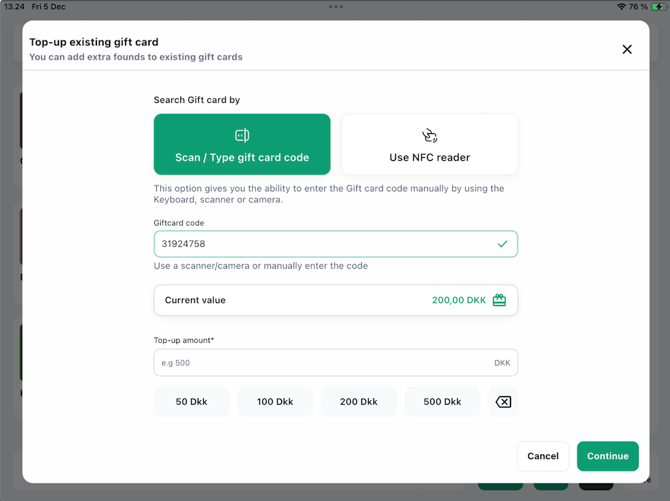
Top-up manually
-
Choose Scan or Type gift card code.
-
Enter the code by:
-
Typing it manually
-
Scanning with a barcode scanner
-
Using the device camera
-
After entering the code, the POS will:
-
Validate the code
-
Display the current value on the gift card
Top-up Using NFC (Physical Card)
-
Choose Use NFC reader.
-
Hold the physical gift card against the NFC reader.
-
The system will detect the card and display the Gift card code.
-
The Current Value automatically appears.
Enter Top-Up Amount
Once the gift card is found and validated:
-
Enter a custom amount (e.g., “450 DKK”), or
-
Select one of the predefined quick buttons:
100 DKK, 250 DKK, 500 DKK, 1000 DKK
(Values may differ depending on store settings)
Confirm Top-Up
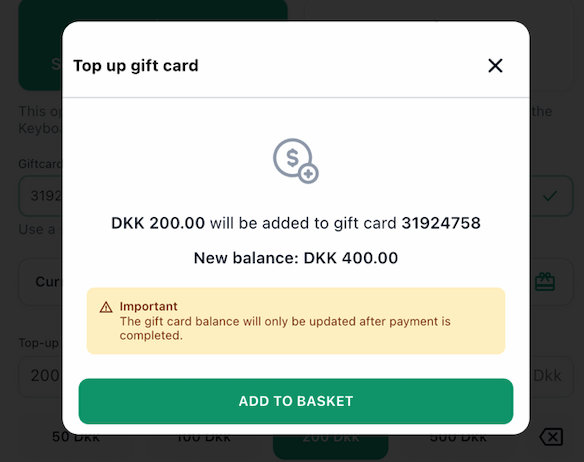
Before the amount is added to the basket, a confirmation modal appears showing:
-
The top-up amount (e.g., “DKK 450 will be added”)
-
The gift card code
-
The new total balance after top-up (e.g. “New balance: DKK 650”)
-
An info message:
“The gift card balance will only be updated after payment is completed.”
Tap Add to basket to finalize.
The top-up is now added as a line item in the basket and must be paid before the increased balance becomes active.
Complete the Payment
Complete the sale as usual.
Once payment is completed, the gift card balance updates automatically.
________________________________________________________________________________________________
How to Redeem a Gift Card
Gift cards can be redeemed during checkout as a payment method. The POS allows you to identify the gift card in three different ways:
-
Entering or scanning the gift card code
-
Scanning a physical NFC gift card
-
Selecting a gift card linked to the customer account (only available if a customer is attached to the basket)
The system automatically validates the card, displays balance, status, and history, and handles special cases such as expired, deactivated, and previously redeemed cards.
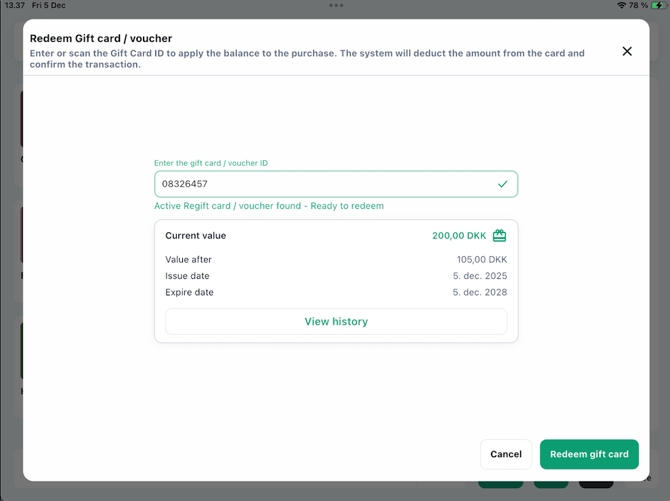
Customer-Attached Gift Cards
If a customer account has been added to the basket:
-
A list of their available gift cards appears.
-
Each card shows the remaining balance.
-
Tap one to select it.
-
When selected, the card expands to show:
-
Current value
-
Value after redemption
-
Issue date
-
Expiry date
-
“View history” button
-
Tap again to collapse/deselect if needed.
Gift Card status
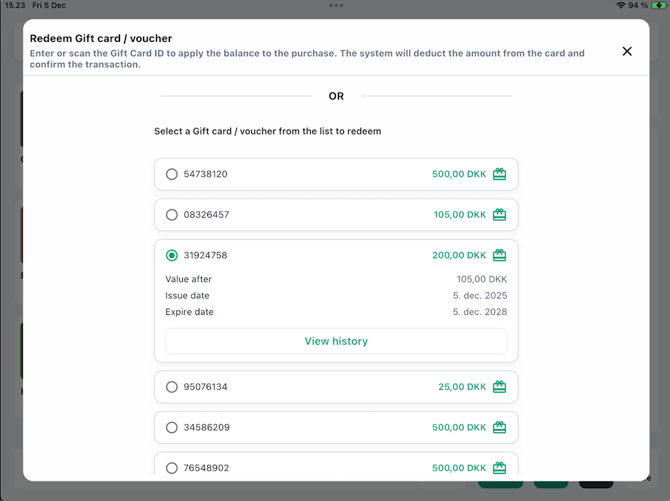
After selecting or scanning a gift card, the system identifies its status and displays available actions.
Active Gift Card
Shows:
-
“Active gift card found – Ready to redeem.”
-
Current value
-
Issue & expiry dates
-
“View history”
Action available: Redeem gift card
Expired Gift Card
Shows:
-
“Gift card/voucher expired.”
-
Balance
-
Issue & expiry dates
Action available: Redeem anyway (the user will only be able to redeem the gift card if he/she have the permissions to do so)
Deactivated / Refunded Card
Shows:
-
“Gift card/voucher deactivated.”
-
A note: “This gift card/voucher was refunded”.
-
Value before/after
-
“View history”
Action available: None
User must select Discard.
Already Redeemed Card
Shows:
-
“Gift card/voucher already redeemed.”
-
Value after last use
-
Issue & expiry dates
Action available: None
User must select Discard or choose another card.
View Gift Card History
At any time, you can tap View history to see a full list of all transactions related to the card:
-
Issued
-
Redeemed
-
Top-ups
-
Deactivated
-
Expired
-
Transaction IDs
-
Timestamps
-
Staff member responsible
This helps staff verify the card’s activity or answer customer questions immediately.
Complete the Redemption
Once an active or eligible expired gift card is selected:
-
Tap Redeem gift card.
-
The gift card amount is applied as a payment method.
-
If the gift card’s value is:
-
More than the total → remaining balance stays on the card
-
Less than the total → customer pays the remaining amount using another payment method
-
The redemption is now complete.