![Logos.webp]](https://help.shopbox.com/hs-fs/hubfs/Logos.webp?height=22&name=Logos.webp)
To connect Shopbox with PowerOffice, first install the Shopbox extension in PowerOffice:
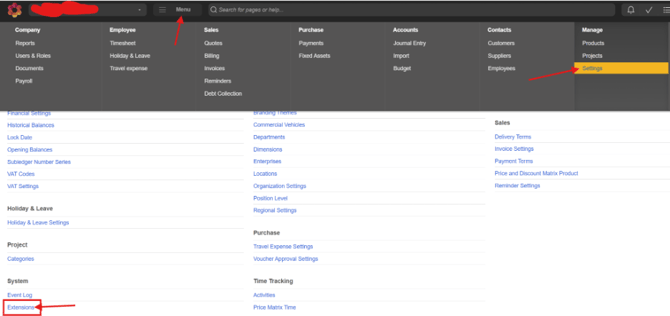
- Open PowerOffice.
- Click Menu.
- Click Settings.
- Click Extensions.
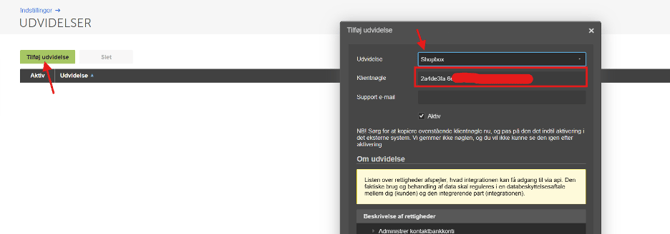
- Click Add extension.
- Search for Shopbox.
- Copy and save the Client Key. It is shown only once, so make sure to store it securely.
Category Account Setup
Assign an account to each of your product categories.
You can use the same account for all categories or choose different accounts if you want to track revenue separately. All fields correspond to your product categories, except No Category and Gift Sales Account.
No Category
This acts as a fallback when end-of-day reports are sent to the accounting system. If a category is missing an account, the revenue for that category will be posted to the account selected here. Most businesses use their most common revenue account.
Gift Sales Account
Use this field for revenue from gift card sales. You can choose a standard revenue account or a dedicated gift card account.
Payment Account Setup
Cash
Choose the account where cash payments and your till balance should be posted.
Cash Difference
Use this account for any cash discrepancies identified during end-of-day cash counts.
Cash Rounding
Use this account for rounding differences on cash payments.
Cash to Bank
Choose the account used when cash is removed from the till and deposited into the bank.
Card Payments
Dankort: Choose the account where Dankort payments should be posted.
Visa/Mastercard: Choose the account where Visa and Mastercard payments should be posted.
Other: Choose the account where other card payments, such as Amex or Maestro, should be posted.
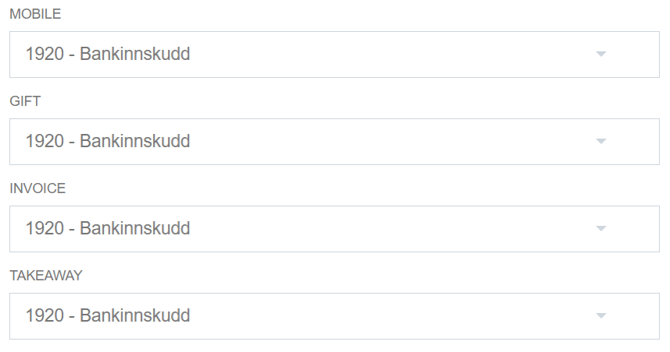
Mobile Payment: Choose the account where MobilePay payments should be posted.
Gift Card: Choose the account where gift card payments should be posted.
Invoice: Choose the account where invoice sales created directly from Shopbox should be posted.
Takeaway: Choose the account where payments from takeaway platforms, such as Wolt, should be posted.
Category Mapping
Map your product categories from Shopbox to product groups in PowerOffice so they are linked correctly for accounting.
Fallback Product Group
Use the fallback product group when an item has not been assigned to a product group. In that case, the posting will go to the account linked to the fallback group.
VAT Settings
Map the VAT rates from Shopbox to the correct VAT accounts in PowerOffice.
Choose the appropriate VAT account for each rate you use. Sales with that rate will be posted to the selected account.
Invoice Synchronization
You can enable or disable invoice synchronization with PowerOffice.
When invoice synchronization is enabled, Shopbox automatically creates invoices in PowerOffice whenever an invoice sale is made.