![Logos.webp]](https://help.shopbox.com/hs-fs/hubfs/Logos.webp?height=22&name=Logos.webp)
1. Set up the time clock
First, you need to activate the time clock and choose how your employees should clock in and out.
- Log in at shifts.shopbox.com
- Go to Settings > Time clock
- Turn on the time clock
1.1 Choose how employees should clock in and out
You can choose between two options:
Fixed time clock
Employees clock in and out using a shared computer or tablet at the workplace.
Time clock via web
Employees open the time clock in a browser on their own phone, tablet, or computer.
You can also use both options at the same time.
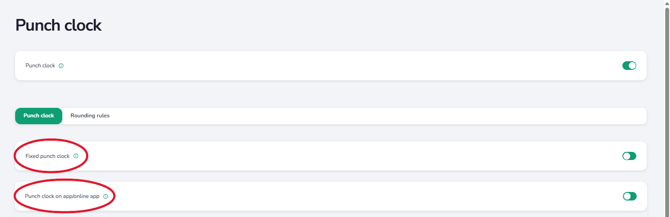
1.2 Use a shared device at the workplace
A fixed time clock is a good option if employees need to clock in and out using a tablet or computer at the workplace.
- Turn on Fixed time clock
- Enter a password of your choice
.png?width=670&height=199&name=Fixed%20punch%20clock%20(1.2%20-%202).png)
- Click Save changes
The password should only be shared with the relevant people, as it provides access to the time clock.
You can also activate Personal time clock password. When this feature is enabled, each employee must create their own password the first time they use the time clock. The password must then be used every time the employee clocks in or out.
.png?width=353&height=203&name=Personal%20password%20for%20punch%20user%20(1%20-%203).png)
1.3 Let employees clock in from their own phone
Employees can also clock in and out using their own phone, tablet, or computer.
- Turn on Time clock via web
- Click Save changes
Employees can then open the time clock in their browser and register their working hours, regardless of which device they use.
2. Create a shortcut to the time clock on an iPad
If you use an iPad as a shared time clock at the workplace, you can create a shortcut on the home screen. This allows employees to open the time clock with one tap.
- Open Safari
- Go to https://shifts.shopbox.com/punch-login
- Click Time clock in the top-right corner
- Enter your company ID, which you can find under Settings > Time clock
- Click Next
- Select a department
- Enter the password
- Click Log in
- Tap the share icon in Safari

- Select Add to Home Screen
- Choose a name for the shortcut
- Tap Add
The time clock will now appear as a shortcut on the iPad home screen. You should also remain logged in automatically going forward.
3. Set up rounding rules
You can create rules for rounding employees’ registered working hours up or down. This can be useful, for example, if an employee clocks in a few minutes before or after the scheduled start time of their shift.
Go to Settings > Time clock > Rounding rules
.png?width=670&height=320&name=Punch%20clock%20round%20up%20(3%20-%201).png)
Here, you can set up rules for:
- Start of shift
- End of shift
- Earlier than scheduled
- Later than scheduled
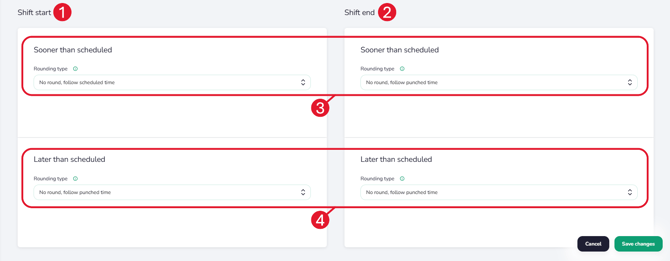
Click the information icon next to Rounding type to learn more about the different options.
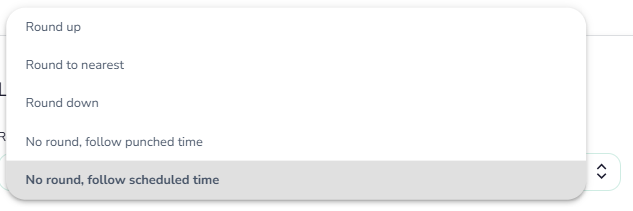
Once you have selected the preferred rules, click Save changes.
Congratulations! Your time clock is now ready to use. 🤩