![Logos.webp]](https://help.shopbox.com/hs-fs/hubfs/Logos.webp?height=22&name=Logos.webp)
Before you start the setup, it is important that you have familiarised yourself with how the integration works.
If you haven’t already done so, you can read more here.
In this article, we will go through:
Preparing to connect Shopbox and Shopify
Before we start connecting Shopbox and Shopify, make sure you are logged in to:
-
Your Shopify admin with an administrator user
-
Shopbox Backoffice (my.shopbox.com) with an administrator user
Setting up the integration in Shopify
The first step when connecting your webshop to Shopbox is to install Shopbox in your Shopify Backoffice.
-
Log in to Shopify Backoffice.
-
In the left menu, click Apps.
-
At the top, the search field will open. At the bottom, click App and sales channel settings.
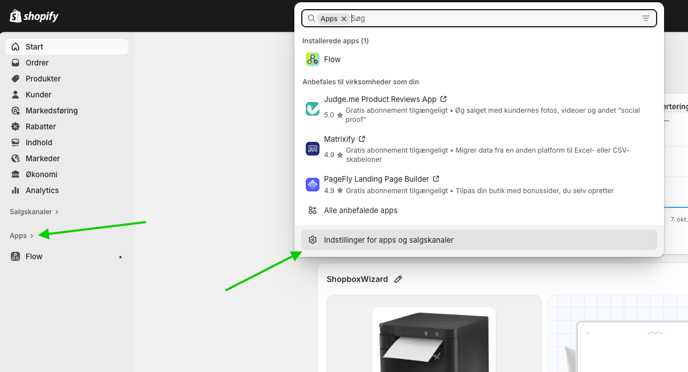
- In the top right corner, click Develop apps
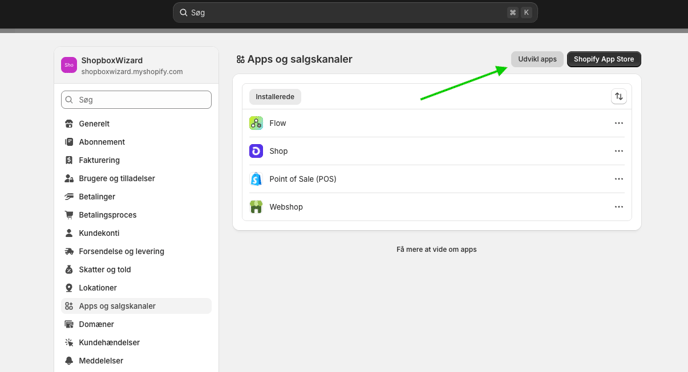
-
Click Create an app
-
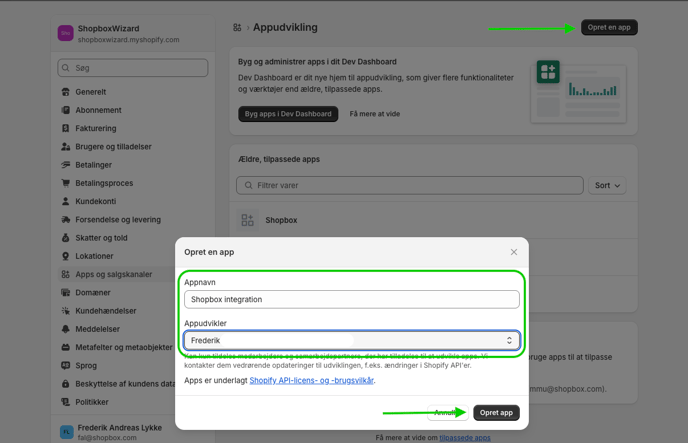
Give the app a name and add yourself as the App Developer
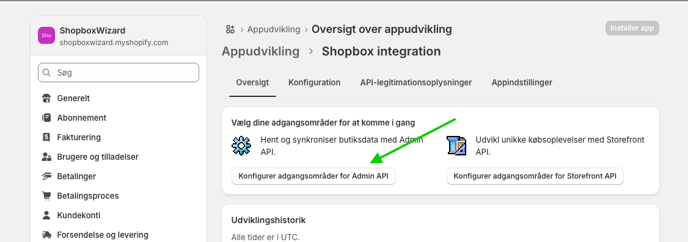
- Grant access to the areas you want to sync with Shopbox. Click Configure Admin API scopes
-
Select the access scopes Shopbox should have. You can see the list here
-
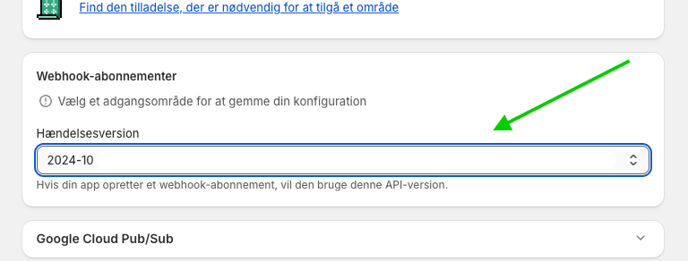
Scroll down to Webhook subscriptions and select 2025-10
-
Scroll back to the top and click Save
-
Go to Overview
-
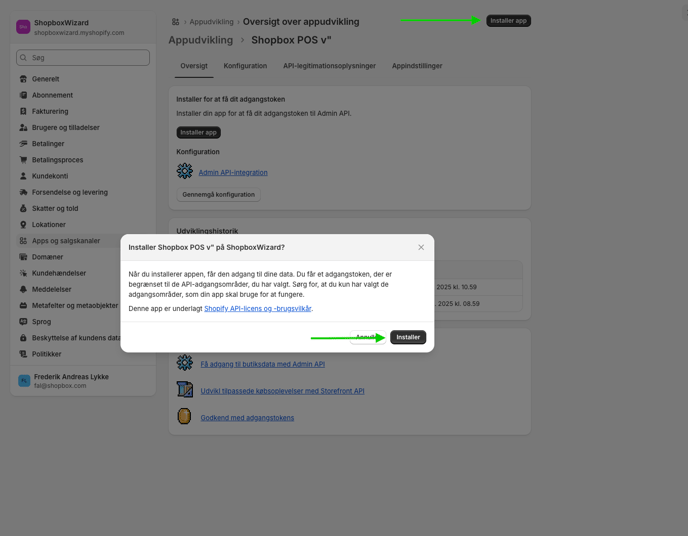
Click Install app
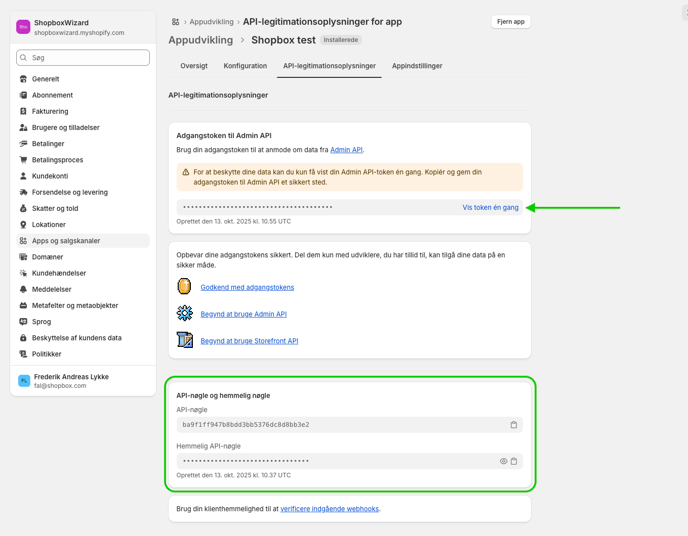
When the app is installed, an access token will be shown. It only appears once, so make sure to save it for later use.
- Click Install
-
Click Reveal token once and copy it to a document. This is the access token for Shopbox
-
Then go to API key and Secret key, and copy both into the same document
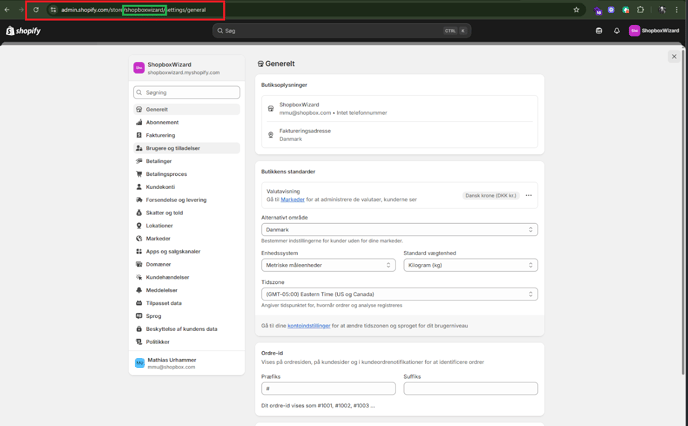
- Also note your my.shopify-name — you will find it in the URL

Setting up the integration in Shopbox
Now we will complete the remaining setup in Shopbox. This is also where you choose how the integration should synchronise.
If you are not already logged in, sign in at my.shopbox.com with an administrator user
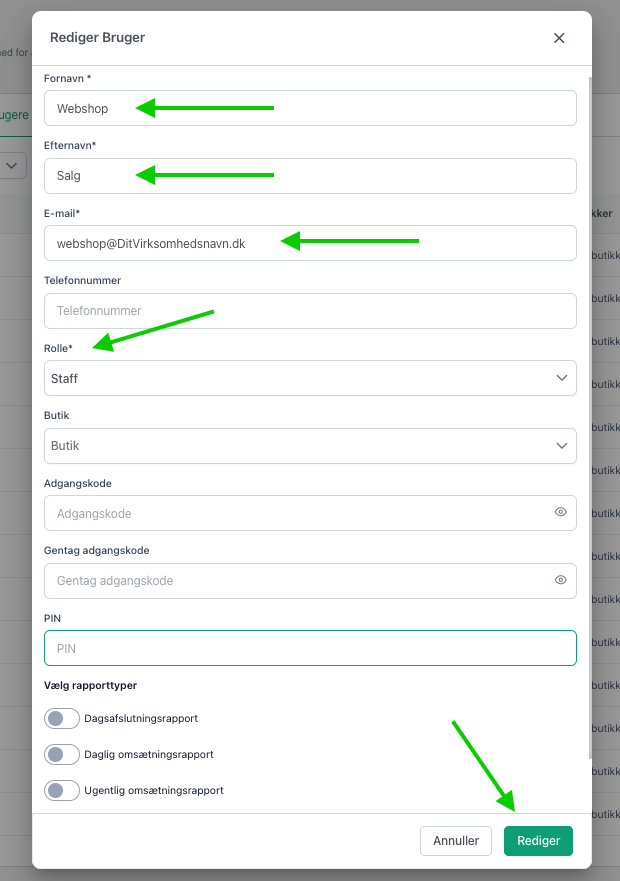
Create a staff user
When sales from your webshop start being registered in Shopbox, the transactions will be assigned to a staff user.
Therefore, you need to create a user that is only used for this purpose.
You can find a guide on how to create a new user here.
Note: Shopbox does not validate whether the email you enter is real. The user can be created as: Webshop@'companyname'.dk
Connect Shopify & Shopbox
-
In the left menu, go to Integrations
-
Find and click Shopify
-
Click Continue
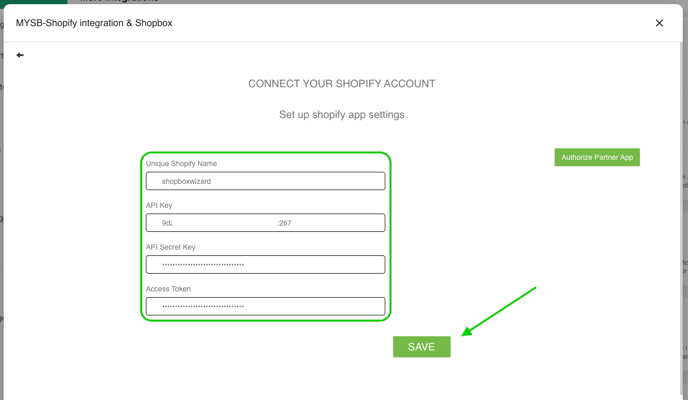
Now insert the information you copied during the setup in Shopify:
-
Your my.shopify-name → under Unique Shopify name
-
Your API key → under API Key
-
Your secret API key → under API Secret Key
-
Your access token → under Access key
- Click save
Then adjust the settings for how the synchronisation should work:
-
Choose the store department(s) that should synchronise with Shopify
-
Choose the register where Shopify sales should be recorded
-
Choose the staff user responsible for Shopify sales
-
Click Save
On the next page, choose how product synchronisation should work: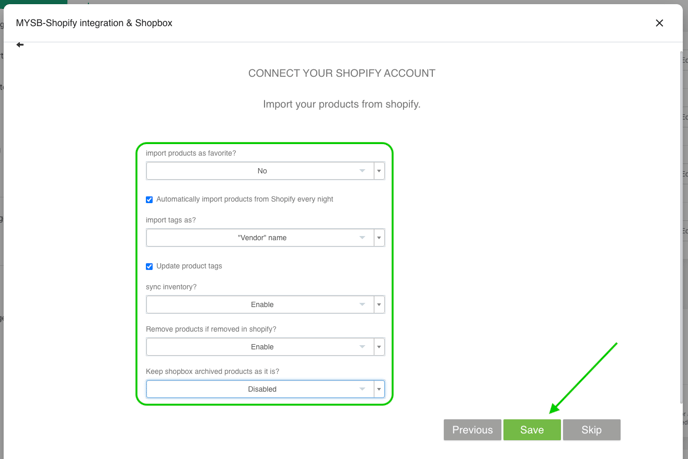
Import products as favourite?
If you select Yes, products imported from Shopify will be marked as favourites in Shopbox.
You can see how favourites work on the POS here.
Automatically import products from Shopify every night?
If enabled, products will sync automatically every night.
Import tags as?
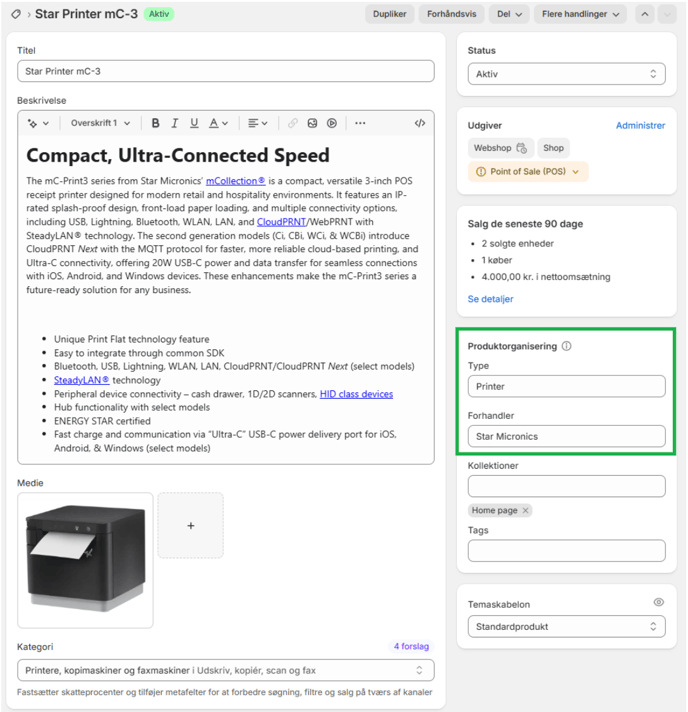
When products are transferred from Shopify to Shopbox, they must be categorised. In Shopbox, you can categorise based on:
- Vendor
- Type
- Vendor – Type
The product will be placed in one of these categories depending on your choice.
Example:
- Vendor = Star Micronics
- Type = Printer
- Vendor-Type = Star Micronics-Printer
Update product tags?
If tags are updated in Shopify, they will also update in Shopbox.
Sync inventory?
Inventory levels in Shopify synchronise to Shopbox.
Remove products if removed in Shopify?
If you delete or draft a product in Shopify, it can automatically be deleted in Shopbox.
Keep Shopbox archived product as it is?
If a product is reactivated in Shopify, you can choose whether it should also be activated in Shopbox.
Click Save
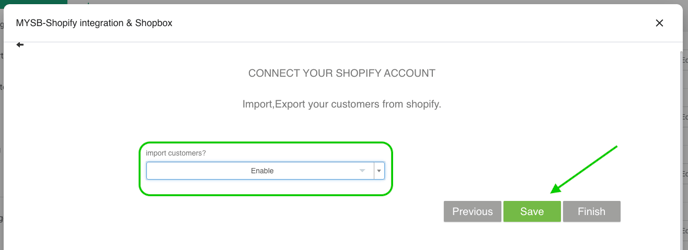
Import customers?
If you want customers registered in Shopify to also be created in Shopbox, activate this option.
Click Save
Congrats! You have now completed the connection between Shopify and Shopbox.
Synchronisation has already begun
These are the minimum access permissions required for the Shopbox app
write_payment_terms,
read_payment_terms,
write_fulfillments,
read_fulfillments,
write_files,
read_files,
write_gift_cards,
read_gift_cards,
write_legal_policies,
read_legal_policies,
write_third_party_fulfillment_orders,
read_third_party_fulfillment_orders,
write_customers,
read_customers,
write_purchase_options,
read_purchase_options,
write_inventory,
read_inventory,
write_locales,
read_locales,
write_shipping,
read_shipping,
write_locations,
read_locations,
write_draft_orders,
read_draft_orders,
write_orders,
read_orders,
write_translations,
read_translations,
write_price_rules,
read_price_rules,
write_products,
read_products,
write_product_listings,
read_product_listings,
write_discounts,
read_discounts,
write_order_edits,
read_order_edits,
write_returns,
read_returns,
write_merchant_managed_fulfillment_orders,
read_merchant_managed_fulfillment_orders,
write_assigned_fulfillment_orders,
read_assigned_fulfillment_orders